
You opened your mileage app this morning and noticed something’s off. That 45-mile trip to the client site last Tuesday? Not there. The supply run on Friday? Missing.
Now you’re wondering: Can I just add these trips manually? And if I do, will it look suspicious?
Short answer: Yes, you can add manual entries. And no, it won’t look sketchy—if you do it right.
Here’s everything you need to know about filling gaps in your mileage log without creating problems down the road.
How to Add Manual Entries the Right Way
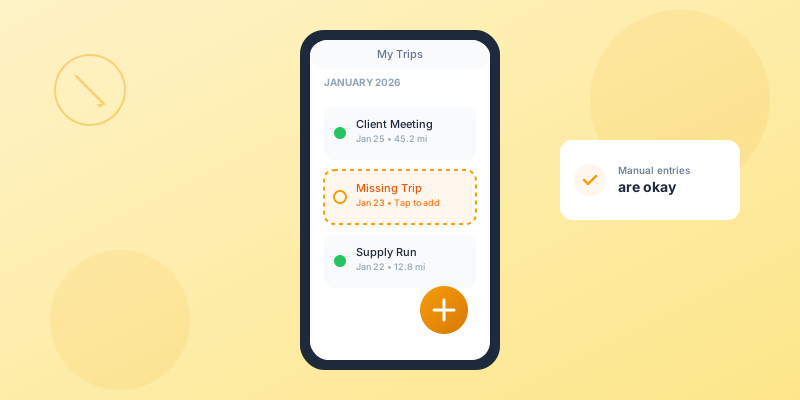
Every decent mileage tracking app lets you add trips manually. The process usually looks something like this:
- Tap “Add Trip” or the + button
- Enter the date and time
- Enter start and end addresses (or just the destination and miles)
- Enter the miles driven
- Add a business purpose note
- Save
The critical part: Don’t just write “client meeting” for the purpose. Be specific. “Met with Sarah Martinez at Acme Corp to discuss Q2 contract renewal” is way better than “meeting.”
Why? Because if you ever face an audit, specific details prove you’re not making things up.
What Documentation to Keep
When you add a manual entry, create a paper trail. Take 30 seconds to do this:
- Screenshot your calendar showing the appointment
- Save the confirmation email or text about the meeting
- Keep the receipt from gas or parking near the destination
- Note why the trip was missed in the app’s notes field (“Added manually - app wasn’t tracking due to battery issue”)
You’re not trying to prove you’re innocent. You’re proving you’re thorough. There’s a difference.
The Annotation That Saves You
Here’s a trick that professional drivers and tax preparers recommend: add a note explaining why you’re entering the trip manually.
Good examples:
- “Manual entry - discovered app wasn’t running during this time period”
- “Manual entry - phone battery died mid-trip”
- “Manual entry - found in calendar review, app didn’t auto-track”
This does two things:
- It shows you’re being transparent, not hiding anything
- It reminds you why certain trips were manual, which helps you fix the root cause
Bad example:
- “Manual entry”
That tells nobody anything.
The Hidden Gap: 15% Missing and You’d Never Know
Say you run a small home inspection business. You drive 800-1,000 miles per week, and you’ve been using a popular mileage app for two years.
In December, you’re preparing your year-end report when something feels off. The total mileage seems low. So you do what most people don’t: you cross-reference your mileage log with your calendar.
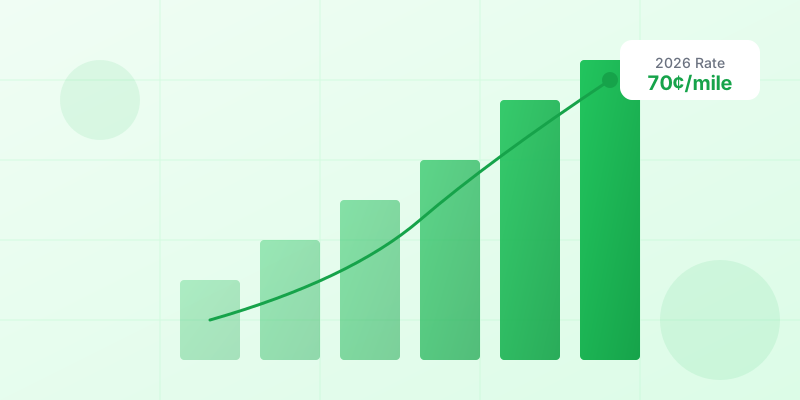
The result? Out of 520 trips logged, your app missed 78 of them. That’s 15%. Over 6,000 miles of missing deductions—worth about $4,350 at the 2026 IRS rate.
The culprit? Your phone’s battery saver mode was aggressively killing the app in the background. You had no idea it was happening because the app didn’t notify you when tracking failed.
You spend a weekend adding the missing trips manually (using your calendar and Google Timeline data), then fix your phone settings to prevent future issues.
The takeaway: Your app might be missing trips right now, and you’d never know unless you check.
Audit Your Own Log (Do This Today)
Don’t wait until tax season to discover gaps. Here’s a quick 15-minute audit process:
Step 1: Cross-Check Against Your Calendar
Pick a random week from last month. Pull up your calendar and your mileage log side by side.
Does every work appointment match a trip in your log?
If you had a meeting at 2pm in a different city, there should be a trip logged around that time. If not, you found a gap.
Step 2: Look for Pattern Breaks
If you normally drive 150 miles on Tuesdays, but your log shows 40 miles one Tuesday, something probably went wrong that day.
Step 3: Check Recent Weeks
Don’t just audit old data. Check last week and this week. If trips are missing now, you can fix the problem before it costs you more.
Why Apps Miss Trips
Mileage tracking apps aren’t perfect. Here are the most common reasons trips disappear:
1. Battery Optimization Kills the App
Modern phones are aggressive about saving battery. They’ll close apps that use GPS in the background. This is the #1 cause of missed trips.
Fix: Go into your phone’s battery settings and disable optimization for your mileage app.
- iPhone: Settings > Battery > turn off Low Power Mode, or use Focus modes that allow location tracking
- Android: Settings > Apps > [Your App] > Battery > select “Unrestricted”
2. Location Permissions Changed
You might have accidentally denied location permissions, or an OS update reset them.
Fix: Check that your mileage app has “Always Allow” location permission, not “While Using App.”
3. Short Trips Don’t Register
Some apps ignore trips under a certain distance (like 1 mile) to avoid clutter. But if you make a lot of short trips, that adds up.
Fix: Check your app’s settings for minimum trip distance and lower it if needed.
4. GPS Signal Issues
Parking garages, dense city buildings, and tunnels can disrupt GPS. If your entire trip happens in a weak signal area, the app might not track it.
Fix: Not much you can do here, but knowing it’s a possibility helps you remember to check your log after trips in these areas.
5. App Crashes or Bugs
Sometimes the app just glitches. Updates, OS changes, and memory issues can cause tracking failures.
Fix: Keep your app updated. If you notice frequent crashes, contact support or switch apps.
Preventing Future Missed Trips: Settings Checklist
Go through this checklist right now. It’ll take 5 minutes and could save you thousands in missed deductions.
Phone Settings:
- Location permission set to “Always Allow” for your mileage app
- Battery optimization disabled for the app
- App notifications enabled (so you get alerts if tracking fails)
App Settings:
- Auto-start enabled
- Minimum trip distance set to your preference (0.5 miles or less if you make short trips)
- Trip classification reminders turned on
- Weekly or monthly summary emails enabled (helps you notice gaps)
Habits:
- Glance at the app once a week to verify trips are logging
- Do a monthly audit against your calendar
- Update the app when new versions are released
When Manual Entries Become a Problem
Adding a few manual trips per month? Totally fine. That’s normal.
Adding 50% of your trips manually? That’s a red flag—for you and for auditors.
Patterns to avoid:
- Consistently high percentage of manual entries (suggests tracking isn’t actually working)
- Manual entries added in bulk weeks or months after the trips happened
- Round-number mileage amounts (20 miles, 50 miles) instead of actual GPS distances
- Vague business purposes (“work stuff,” “business”)
If you find yourself adding a lot of manual trips, you have one of two problems:
- Your app isn’t configured correctly (fix it)
- Your app isn’t reliable enough (switch to a better one)
Manual entry should be the exception, not the rule. If you’re shopping for a more reliable tracker, read our guide to automatic mileage tracking.
The Bottom Line
Can you add trips manually? Absolutely. Should you? Only when necessary.
A good mileage tracking system works in the background, captures every trip automatically, and requires minimal intervention. Manual entries are for filling genuine gaps—not for replacing automatic tracking.
If you’re adding more than a couple trips manually each month, something’s broken. Fix your settings, fix your habits, or fix your app choice.
Your mileage deductions are worth too much to leave to chance. At 72.5 cents per mile, every 100 miles you miss is $72.50 you’re not deducting. Over a year, that adds up fast. Use our calculator to see what your missing trips are worth.
Take 15 minutes today to audit your log, add any missing trips with proper documentation, and fix whatever’s causing the gaps.
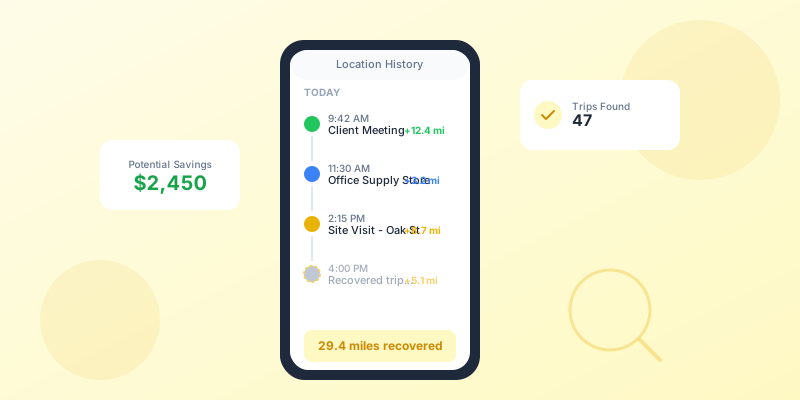
If you’ve gone months without any tracking at all, you may be able to recover past mileage from your phone’s location history.
Your tax return will thank you.